Backups & snapshots
Take a snapshot by hand right before a risky change, or let a backup run automatically on a schedule you set — both are the same kind of point-in-time disk image. Snapshots are on-demand and the first few on each server are free; backups are always scheduled and always paid. You'll find both under a server's Backups tab, and a fleet-wide view at Backups in the main navigation.
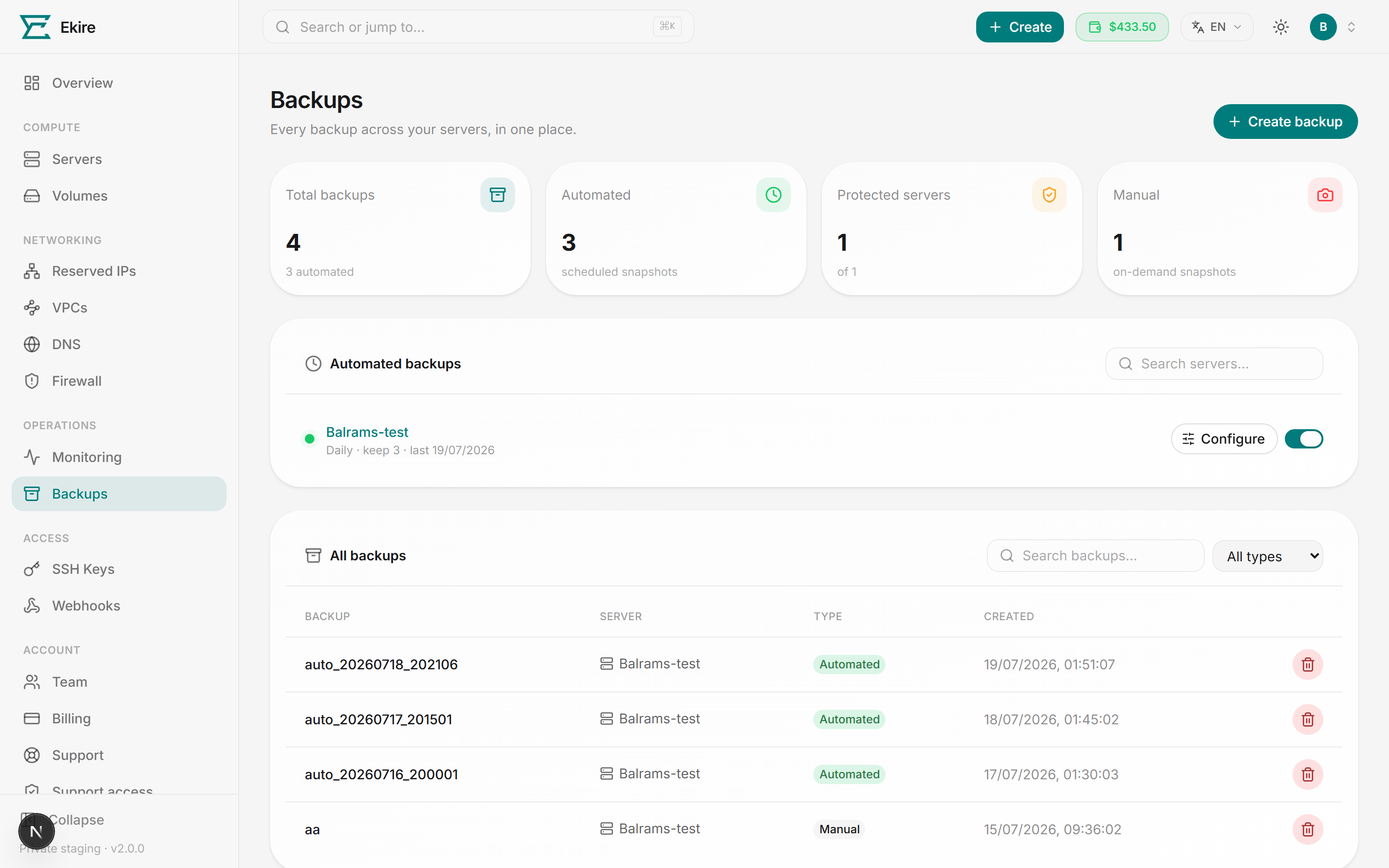
Both live in the same place and restore the same way — the difference is only how they're created and how they're priced. Both also live on the same machine as the server itself, so destroying or reinstalling it takes every restore point with it. They protect you from a bad change, not from losing the server.
| Snapshots | Backups | |
|---|---|---|
| Created | On demand, by you | Automatically, on a schedule |
| Cost | First few free, then paid monthly | Adds a surcharge to the server's rate |
| Best for | Just before an upgrade or config change | Ongoing protection against mistakes |
Snapshots
Take one before you upgrade a package, edit a config file, or try anything you might want to undo — it captures the server's disk exactly as it is the moment you take it. Snapshots you take are labeled Manual, and each server keeps a small number for free before extra ones are billed.
A snapshot or backup also captures every block volume attached to the server at the time. That volume can't be deleted while any such snapshot still exists — the delete is refused with the snapshots' names, so you know which ones to delete first.
A few snapshots are free per server
The first few snapshots on each server cost nothing. Beyond that free allowance, each additional snapshot is billed at a small flat monthly rate in USD. The exact free count, the per-snapshot price, and how many paid snapshots you're currently holding are all shown in the Snapshots panel. A paid one needs an hour of runway in your wallet, same as any other metered add-on, and a server holds at most 20 snapshots.
Managing someone else's account
A team admin can take a server's free snapshots, restore and delete restore points, and pause or retune a backup schedule the owner already runs. A paid snapshot and turning backups on both add to the owner's bill, so those stay with the owner. So does restoring a point taken on a plan that costs more or includes less transfer than the server has now, because the price follows the hardware back (see below). That restore is refused before anything is rolled back. See Team & collaborators.
Take a snapshot
Open the server's Backups tab
From Servers, open the server, then select the Backups tab and the Snapshots sub-tab.
Name it
Give the snapshot a name — start with a letter, then letters, numbers, hyphens, and underscores (2 to 40
characters). current is reserved and refused, and so is a name already used by one of this server's
snapshots or backups. Something like pre-upgrade makes it easy to recognize later.
Create it
Select Create. The request waits until the server has actually taken the snapshot, then it appears in the list below, tagged with the time you took it. If the server couldn't take it, you get an error and nothing is recorded or billed. You can hold several and restore any of them later.
You can also take an on-demand snapshot from the fleet-wide Backups page using Create backup — pick the server, name it, and it lands in that server's Snapshots list.
Backups
Backups run on a repeating schedule you set. They're labeled Automated, and older ones are pruned automatically once you exceed the number you've chosen to keep. Backups are a paid feature: while enabled on a server, they add roughly a 20% surcharge on top of that server's rate.
On monthly billing the surcharge follows the server's monthly commitment: it's charged with the server's month when that month starts, and turning backups on part-way through a month charges the surcharge for the rest of that month at once (pro rata). Turning them off isn't refunded, and turning them off and on again in the same month doesn't charge twice. On hourly billing it's added to each hour as that hour is charged.
What counts is how the server's current month was paid, not the billing mode you're on when you flip the switch: if the month was paid up front on monthly billing and you've since switched to hourly, turning backups on still charges the surcharge for the rest of that month, because no hourly charge for it is coming.
Schedule automated backups
Turn backups on
On the server's Backups tab, flip the Automated backups toggle. This enables the schedule for that one server.
Set frequency and retention
Open the Backups page in the main navigation and select Configure for the server. Choose how often backups run — daily or weekly — and how many to keep (1 to 5). Older automated backups beyond that count are pruned for you.
Save and wait for the first run
Save the schedule. Automated backups appear in the list once the schedule first runs — they aren't created instantly.
A stopped server isn't backed up
The sweep only snapshots servers that are running, so a server you've powered off keeps its existing backups but gains no new ones until you start it again. The schedule stays on and picks up from there.
The fleet-wide Backups page manages this across many servers: it shows which servers are protected, lets you search and toggle each one, and lists every snapshot and backup you hold with a filter for Automated vs Manual.
Restoring
Restoring works the same for a snapshot or a backup: the server rolls back to that exact point, and anything changed since is gone. Because a restore rewrites the disk, the server must be powered off first.
Restoring overwrites everything since
A restore rolls the server back to the chosen point. Every file, package, and change made after that point is lost for good. Take a fresh snapshot first if you might want the current state back. The server stays powered off afterwards — start it when you're ready.
Stop the server
Restore is only available when the server is stopped. Power it off from the server's controls first.
Pick the point to restore
On the Backups tab, find the snapshot or backup you want and select Restore. Confirm the prompt — it names the exact point you're rolling back to.
Wait for it to land
A restore isn't done until the hypervisor says it's done, so the console waits for the rollback rather than reporting back the moment it's asked for. If the restore point has gone missing from the host, or the rollback doesn't complete, you get a plain failure instead of a quiet success — and your plan, price and specs are left exactly as they were.
Check your root password
After a restore, your SSH keys re-sync automatically, but the root password rolls back with the disk. If you'd changed it since that point, it may have reverted — the console offers a Reset password action so you can set it again.
Your plan follows the hardware back
A restore point holds the server's shape, not just its disk. Restoring one taken before a resize puts the vCPU, memory and included transfer back where they were — and the monthly price with them, in whichever direction that moves. The new figure is read from the current price list at your account's own rate. On hourly billing it applies from the next billing tick. On monthly billing, a restore that moves the price up charges the difference for this billing month when it lands — the restored plan's price for the month, less what the month has already been charged, plus the backups surcharge on it if automated backups are on when the restore lands — just like resizing up. If your wallet can't cover that, the restore is refused before anything is rolled back. A restore that moves the price down charges nothing now and isn't refunded for the month already paid; the lower price applies from your next billing month. A team admin working in your account can't restore a point that would raise the price or shrink the included transfer; that restore is yours to make.
Your network stays as it is now
A restore rolls back the disk and the hardware, but not the server's network. It keeps the reserved IPs and private networks it holds today: an IP detached after the restore point isn't brought back, since someone else may hold it now, and one attached since stays attached. The firewall isn't part of a restore point either, so your current rules stay. If the network can't be matched right after the rollback, the restore reports it and the server stays stopped. Start checks it again before the server boots.
Deleting is permanent
You can remove any snapshot or backup you no longer need from the list. Deletion is immediate and can't be undone, so keep at least one recent restore point you trust.