Support tickets
Open a ticket under Support and our team gets back to you in the same thread. The console keeps a running list of your conversations with us, from the first message you write through each of our replies.
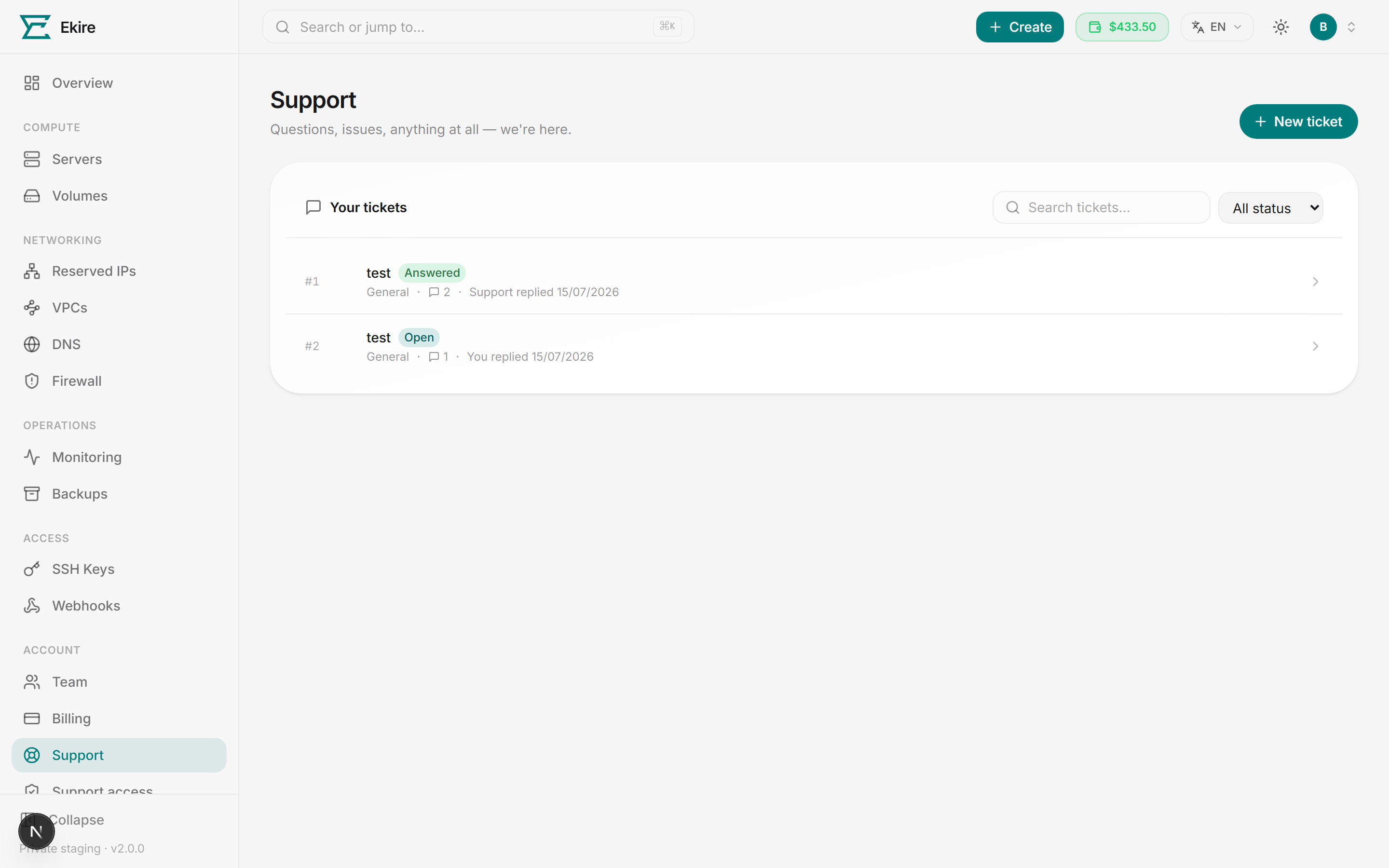
Your tickets
The Support page lists every ticket you've opened, newest activity first. Each row shows the ticket number, its subject, a status chip, and — for anything you've flagged as High or Urgent — a priority chip. Below that you'll see the department, how many messages the thread holds, and whether you or our team replied last, with the date.
To find an older ticket, type into the search box, which matches ticket subjects, or use the status filter to narrow to Open, Answered, or Closed. Long lists page 25 at a time. Click any row to open the full thread.
Open a ticket
Start a new ticket
On the Support page, click New ticket in the top right. A short form appears above your list.
Add a subject
Give the ticket a short, clear subject — a brief summary of what's going on. This is what you'll recognize it by later, so keep it specific.
Choose a department and priority
Pick the department that fits — General, Technical, or Billing — so we know which area it's about. Set a priority of Low, Normal (the default), High, or Urgent to signal how time-sensitive it is.
Describe the issue
Write your message. Include as much detail as you can — what you expected, what happened, and any error messages. The more we have up front, the faster we can help.
Name the server by its handle
If the ticket is about a particular server, paste its handle — ekire- and six
characters, copyable from the server's detail page. A name like web might be one of
several; a handle is only ever one server, so it saves us both a round of "which one?".
See Names and handles.
Open the ticket
Click Open ticket. You land straight on the new thread, ready for our reply.
Troubleshooting a specific server? Grant access.
If the issue is on a Linux server, the fastest way to let us dig in is to grant temporary, auto-revoked access instead of trading screenshots. You can do it right inside the ticket thread, or from the dedicated page — see Support access.
The ticket thread
The thread reads top to bottom, your own messages and our team's in the order they were sent. Replies from us carry a Support badge, and every message shows its author and timestamp.
To respond, type into the reply box at the bottom and click Send reply. Your message is added to the thread right away, and the ticket moves back to our queue.
Inside the thread you'll also find a Let our team onto a server card. Choose one of your Linux servers and how many hours of access to grant, then click Grant. We create a temporary support user for that window and it's removed automatically when the time is up — and you can revoke it early at any point. See Support access for the full rundown.
Statuses
Each ticket carries a status:
| Status | What it means |
|---|---|
| Open | The ticket is active and with our team. This is where a ticket starts, and where it returns each time you reply. |
| Answered | Our team has replied to your latest message — the ball's in your court. |
| Closed | The conversation is wrapped up. A closed ticket stays in your list for reference. |
Closing and reopening
When your issue is resolved, you can wrap up the ticket yourself: open it and click Close, then confirm. Nothing is deleted — the closed thread stays in your list.
Changed your mind, or the problem came back? Reply to the closed ticket. The reply box stays available, and sending a message reopens the ticket and puts it back in front of our team.
No need to close every ticket
Closing is mostly for your own tidiness. Leave a ticket open if you're unsure it's fully resolved — you can always close it later, and reopening is one reply away. There's a cap of 50 unresolved tickets per account — Open and Answered both count towards it — so close them off once they're done.