Managing your servers
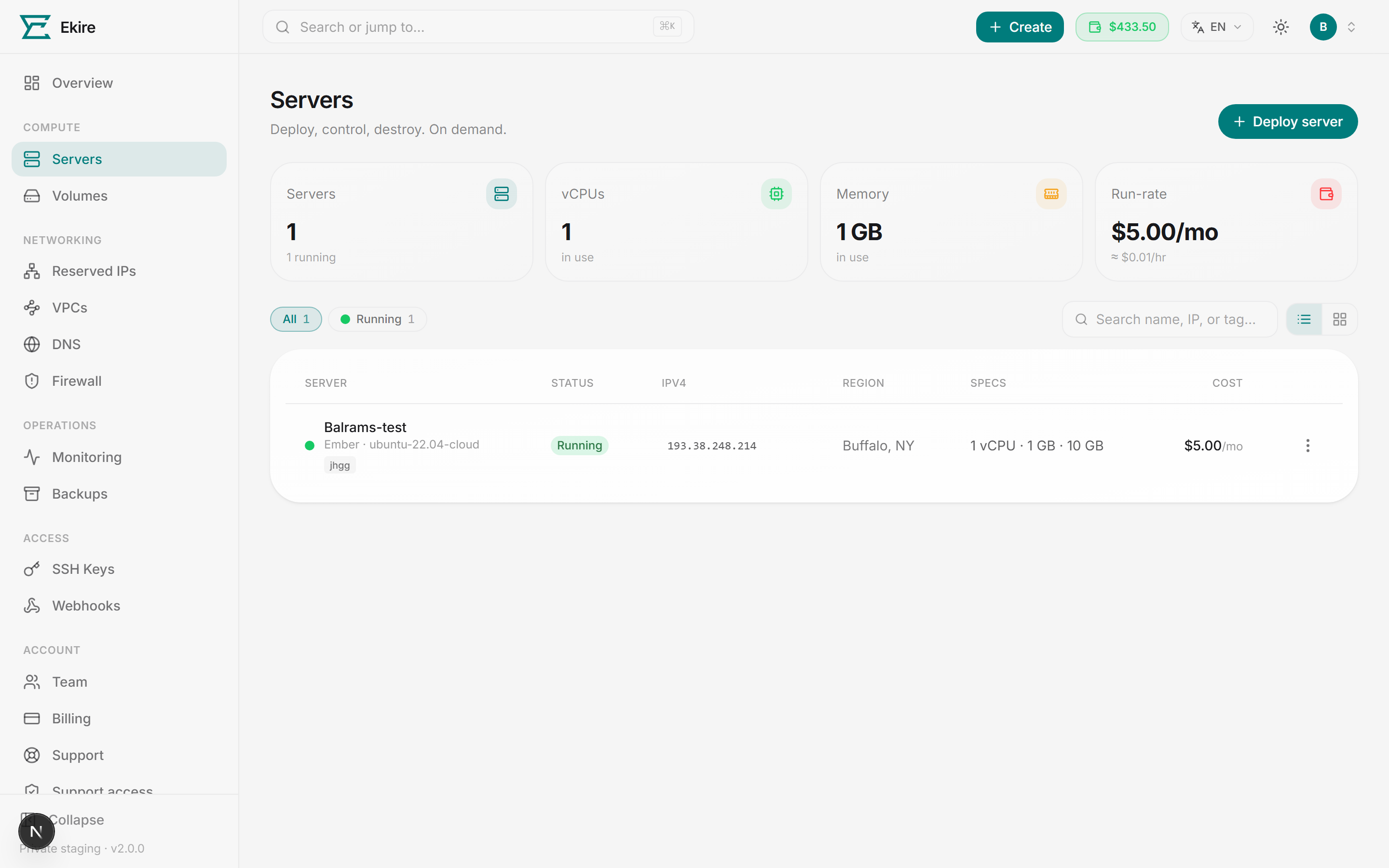
Every server in your account lists here, with start, stop, reboot, console, and destroy on each row's ⋮ menu. The list refreshes on its own every few seconds, so statuses update without a reload.
Deploy a new server
The Deploy server button sits in the top-right of the page and opens the deploy wizard. From an empty account you'll instead see an Empty rack card with a Deploy your first server button.
Working inside a team account
While you're acting inside someone else's account, the Deploy server button is hidden. Deploying stays with the owner, along with opening a server's console and setting a root password (by reset, or by choosing one on a reinstall) — each of those hands out access that would outlast the membership. So does anything that adds to the owner's bill, such as moving a server to a dearer plan or to one with less included transfer, or restoring a snapshot taken on dearer hardware. An admin collaborator can still run what's already there; a member is read-only, so the ⋮ menu doesn't appear at all.
Read the summary bar
The tiles across the top summarize your fleet:
- Servers — how many servers you have in total, and how many are running.
- vCPUs — total vCPUs currently in use.
- Memory — total memory currently in use.
- Run-rate — your servers' monthly price, with the hourly rate underneath worked out to fractions of a cent (a $5 server shows ≈ $0.0068/hr, not $0.01). Automated backups bill on top; Billing → Projected includes them.
Run-rate counts stopped servers too
vCPUs and Memory add up only the servers that are running. Run-rate counts every server you haven't destroyed, because a stopped server keeps its disk, memory reservation and IP and bills at the full rate until you destroy it. A deploy that failed before it got a machine isn't billed, so it isn't counted.
Find a server
Once you have more than a handful of servers, use these to narrow the list:
- Search — the search box matches on server name, handle, IP address, or tag. Filtering
is instant, and a handle matches on any part of it — paste
ekire-7k4m2por just7k4m2pout of a support reply and you land on the right server. - Status filters — the chips below the tiles let you filter by status. Each chip shows a live count, and only statuses that actually exist in your list appear.
- List / grid view — toggle between a detailed table and denser cards with the buttons on the right. Your choice is remembered the next time you visit.
What the table shows
In list view, each server is a row:
| Column | What it shows |
|---|---|
| Server | Name (links to the server's detail page), its plan, OS image and handle, and any tags. |
| Status | The server's current state (see below). |
| IPv4 | The public IPv4 address, or pending while one is being assigned. |
| Region | Where the server runs. |
| Specs | vCPUs, memory, and disk size. |
| Cost | The server's monthly cost, shown in your account's display currency (USD by default). Charges are always billed in USD. |
Copy an SSH command in one click
Click a server's IPv4 address and the full ssh root@<ip> command is copied to your clipboard, ready to
paste into a terminal.
Names and handles
Two different things identify a server, and it's worth knowing which is which.
The name is yours. Pick anything; rename it whenever you like; reuse the same name on ten servers
if that's how you think about them. Nothing depends on it being unique. The deploy form arrives with a
readable one already filled in — something like quiet-harbor — so you never have to stop and invent
one, and no two customers end up staring at the same my-server. Type over it, or press the dice for
another.
The handle is ours — ekire- and six characters, like ekire-7k4m2p. Every server gets one when
it's created, no two servers share one, and it never changes for the life of the server. It's on every
row of this list and in the header of the server's detail page, where one click copies it. Quote it to
support: it's the fastest way to point at exactly the server you mean. Under the hood it's also what the
server is called on the hypervisor, which is how we tie a machine back to your account.
The host your server runs on
Behind the handle, each server also has a full name that includes the machine it runs on:
ekire-7k4m2p-apollo. The last piece names the host. It's a single word drawn from something the
region's city is known for — apollo for Houston, where mission control is; falls for Buffalo, next to
Niagara; changi for Singapore.
It's on every row of your server list and on the server's detail page, printed a shade lighter than the
handle. That's the point: when a host needs maintenance, the notice says "every server ending -apollo
is affected" and you can glance at your own list and know whether it's yours, instead of waiting for us
to work out who to email.
Servers in the same region can sit on different hosts, so two of yours may end -apollo and -gemini.
That's worth having — spreading them across hosts means one host's maintenance can't take all of them
down at once.
The suffix follows the server, the handle doesn't move. If we ever migrate a server to another host, the suffix changes to name the host it's on now, so it's always current rather than describing where it started. The handle never changes for the life of the server, which is why copying the badge on the detail page copies the handle alone — that's the part you can safely paste into a ticket months later.
Server statuses
The colored dot and the status chip tell you what a server is doing:
| Status | Meaning |
|---|---|
| Running | Powered on and reachable. The dot pulses green. |
| Booting | Being provisioned or powered on. Controls are hidden until it settles. |
| Stopped | Powered off. Start it to bring it back. It still bills at its normal rate — it keeps its disk, its memory reservation and its IP on a host whether or not it's on. |
| Error | The server hit an error. |
Control a server
Each row and card has a ⋮ actions menu. Which actions appear depends on the server's status:
- Running — Open console, Reboot, Stop, and Destroy.
- Stopped — Start and Destroy.
- Any other status — Destroy only.
No controls while booting
While a server is Booting, the actions menu is hidden entirely. Wait for it to reach Running or Stopped before acting on it. Only one action runs at a time — a spinner shows while an action is in flight.
Open the web console
For a running server, choose Open console from the ⋮ menu. It takes you to that server's Console tab, where the screen is attached directly to the virtual machine — so you get terminal access even when SSH or RDP isn't reachable, including when a firewall change or a bad network config has locked you out.
You can also go there directly: open the server and choose the Console tab.
Open the web terminal
For a running Linux server, the Terminal tab opens a real SSH shell in your browser — a root prompt, no SSH client needed. It's a convenience over the console and your own SSH keys, not a new kind of access. Each session connects over SSH through a short-lived, server-side credential that's removed when you close the tab (and auto-expires regardless), so nothing is left behind on your server.
It needs the server running and the guest agent present (installed automatically on servers
deployed with it). If the agent isn't available — or on Windows — the tab points you to the Console
(VNC) tab instead. Opening a terminal is reserved for the account owner (a team member acting on your
account can't), and each open is recorded in your account's activity. If you paste far more than the server
can take in (over about a megabyte of input waiting to be sent), the session closes instead of queueing it.
Upload big files with scp or rsync instead.
Start, stop, or reboot
Open the actions menu
Click the ⋮ button on the server's row or card.
Choose an action
Pick Start (stopped servers), or Stop or Reboot (running servers).
Watch the status update
The list refreshes on its own, so the status chip moves to its new state within a few seconds.
Destroy a server
Destroying is permanent. Choose Destroy from the ⋮ menu to open a confirmation dialog that spells out exactly what happens.
Select Destroy
Open the ⋮ menu and choose Destroy.
Type the server's name
You must type the server's exact name before the Destroy button unlocks.
Confirm
Click Destroy. Billing stops immediately.
This can't be undone
Destroying a server wipes every disk for good and releases its public IPv4 address. Its snapshots and backups live on the same machine, so they go too — a restore point is not a way to survive a destroy. Any block volumes attached to it are deleted with it rather than detached. There's no undo, so copy anything you need off the server first.