Billing & wallet
Ekire runs on a prepaid wallet. You add money up front, and everything you run — servers, volumes, backups — draws down that balance as it goes. If the wallet has funds, your services run; if it can't cover them, they're paused until you top up.
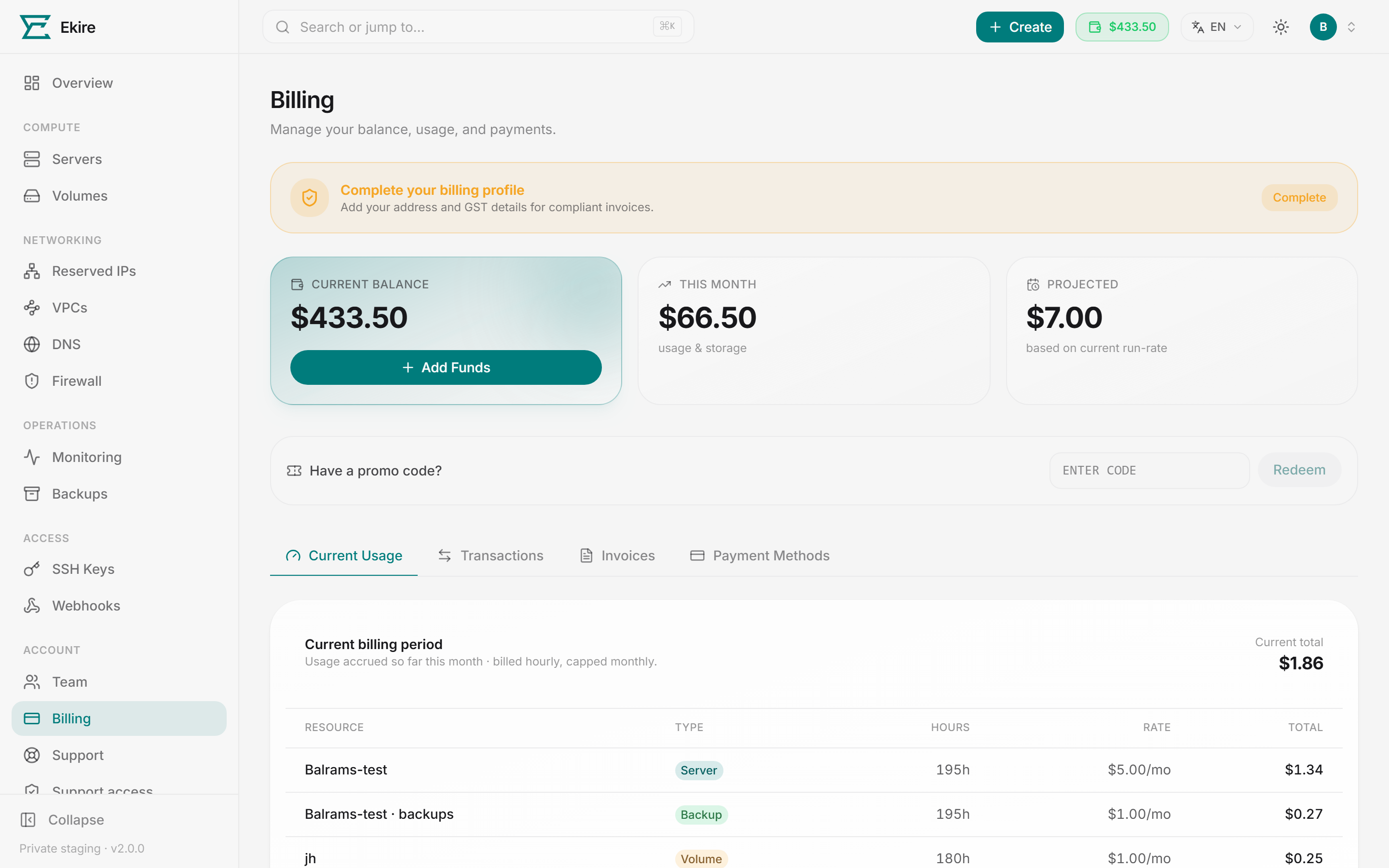
The top of the Billing page shows your balance and spend, with tabs below for usage, transactions, invoices, and payment methods.
Charges are in USD
Your wallet is held in US dollars. If your account shows a different currency, that's a display conversion — every charge, and every amount you add, is settled in USD. See Currency.
The wallet
At the top of the page:
- Current Balance — what's in your wallet right now, with an Add Funds button.
- This Month — how much you've spent so far this billing month, with the change versus last month.
- Projected — the monthly run-rate of everything that bills on a monthly rate: every server you haven't destroyed (stopped ones still bill) at the rate it's billed this period, with any service discount, plus its automated-backups surcharge, your volumes and your reserved IPs. A deploy that failed before it got a machine isn't billed, so it isn't counted. Paid snapshots and bandwidth overage are metered as they happen, so they aren't included.
On hourly billing, resources are metered by the hour and capped at the monthly rate. On monthly billing (the default), each resource commits its full month up front. Either way, charges draw down this balance. As soon as a payment clears, the funds are usable.
Adding funds
Open the Payment Methods tab (or click Add Funds) to top up.
Choose an amount
Tap a preset, or enter your own figure in the custom field. Both are in US dollars, because that's what card, PayPal and crypto top-ups charge — the Pay buttons say so too ("Pay $500.00"). If your display currency is something else, the approximate converted figure is shown beside the amount as a hint only: your bank or wallet does its own conversion when it pays a USD charge, and its rate (and any fee) may differ. There's a minimum top-up; if you go below it, the field flags the minimum and the pay buttons stay disabled until you raise the amount. Some accounts also have a maximum per top-up — go over it and the field flags the ceiling (and any preset above it is greyed out) until you lower the amount.
Pick a payment method
Depending on what's enabled for your account, you can pay by card (Visa, Mastercard, UPI and more via Stripe), PayPal, crypto (Bitcoin, USDT and more via Cryptomus), or — for Indian payments — in ₹ via Razorpay or Cashfree (cards, UPI, netbanking and wallets). If you've saved a card before, you can pay it in one click.
Complete the payment
Card payments are entered inline. The card form is set up for the amount you had chosen when you opened it, and that's exactly what it charges — while it's open the presets and the custom field are locked; to change the amount, Cancel the form and open it again. PayPal and crypto redirect you out to approve, then bring you back. Razorpay and Cashfree open a secure payment window right on the page. Once the payment confirms, your balance updates on its own.
Crypto confirms on its own schedule
Crypto top-ups are confirmed by the payment network, so the balance may land a moment after you return — the page keeps checking and updates once the network confirms it.
Paying in Indian Rupees
Razorpay and Cashfree charge in rupees — pick a ₹ amount in the "Pay in Indian Rupees" box. Your wallet is still kept in US dollars, so it's credited the dollar equivalent of what you paid, at the exchange rate we're using at that moment — normally the market rate, though we may fix it at a set rate for a while. The rate is locked in when you start the payment, so the credit you see is exactly the conversion you were shown, even if the rate changes before you finish paying.
Auto top-up
Turn on auto top-up to keep the wallet funded. You set a threshold and an amount: whenever your balance drops to or below the threshold, we charge your saved card for the amount and credit the wallet automatically.
Add a card first
Auto top-up charges a saved card, so add one under Add funds before you enable it. Until you do, the toggle stays locked with a reminder.
Set your thresholds
Fill in When below (the balance that triggers a recharge) and Top up (how much to add each time). The top-up has to be larger than the trigger, or one recharge still leaves you under it and the next sweep charges you again — that pairing is refused while auto top-up is on.
Turn it on and save
Flip the toggle and click Save. You can adjust the numbers or switch it off again at any time.
A declined card switches auto top-up off
Any auto charge that doesn't go through — a decline, a card that's no longer there, one that needs you present to authorize it — turns auto top-up off rather than retrying a dead card every few minutes. Nothing tells you at the time, so if you're relying on it, check the toggle after a card expires or is replaced.
Billing modes
Each account chooses how running resources draw down the wallet. You'll find this under Billing mode on the Payment Methods tab.
| Mode | How it's charged |
|---|---|
| Monthly (default) | A flat rate per resource — best for always-on workloads. |
| Hourly | You pay only for the hours you run, capped at the monthly rate so an hourly resource never costs more than a monthly one. Volumes and reserved IPs bill for the hours they're held, whether or not a server is on. |
Either way, the monthly rate is a ceiling: run a resource all month and hourly and monthly come out the same; run it for part of the month on hourly and you pay only for that slice. The hourly rate isn't a separate price — it's the monthly price divided by 730, worked out to fractions of a cent so cheap resources don't round up.
Switching mode doesn't re-charge you
You can flip between monthly and hourly whenever you like. Each resource's billing period is anchored to when that resource was created — not to the calendar, and not to your billing mode — so switching changes the rate from that point on and never restarts the period or bills a month you've already paid for.
Hourly needs a verified phone
Switching to hourly billing requires a verified phone number. If yours isn't verified yet, the hourly tile is locked with a link to verify it in Settings → Security. Support can also enable hourly for your account without a phone, or disable it entirely — if the hourly tile says it's been disabled for your account, reach out to us and we'll sort it out.
Monthly commits the whole period
On monthly, a resource commits its whole period on the first charge of that period — and add-ons follow the same rhythm. Turning automated backups on part-way through a period charges the backup surcharge for the rest of that period straight away, pro rata, so they cost the same whether they were on when the period started or switched on later; turning them off part-way through isn't refunded for the period you've already committed. This follows how the period was paid, not your current mode: a period paid up front on monthly is still surcharged for its remainder if you switch to hourly and then turn backups on. Growing a volume part-way through a period charges the rest of the period at the new size when you confirm, before the disk grows (the new monthly rate minus what the period already paid — the whole new month if its new period hasn't been charged yet), and refunds it if the grow can't complete. On hourly, the backup surcharge is added to each hour as that hour is charged, and a grown volume bills at its new rate from the next hour.
Resizing to a bigger plan part-way through a period is charged at the moment you resize: the new plan's price for the period, less what the period has already been charged (plus the backups surcharge on the difference, if backups are on when the resize lands). The Resize tab shows the amount before you confirm, and the resize is refused if your wallet can't cover it. A smaller plan charges nothing now, isn't refunded for the period already committed, and bills its lower price from the next period. On hourly, a resize simply changes the hourly rate from that point on.
Restoring a snapshot or backup that moves the price back up (one taken before a downgrade) is charged the same way on monthly billing: the restored plan's price for the period, less what the period has already been charged, debited when the restore lands. The restore is refused — before anything is rolled back — if your wallet can't cover it. A restore that moves the price down charges nothing now and isn't refunded for the period already committed. On hourly, the restored rate simply applies from that point on.
Where prices come from
Every rate on the platform comes from one catalog — plans, the per-unit rates behind a custom-built server, block storage, reserved IPs, paid snapshots, bandwidth overage, and the automated-backups surcharge. Your charges are calculated from that catalog, and so is the pricing on our website, so what we publish and what we bill can't drift apart.
One caveat, because it's your money: the plan cards in the deploy wizard render the standard tiers from a built-in list rather than reading the catalog as you look at them, so in the window just after we republish a tier's price a card can still show the old figure. The catalog price is the one that's captured on the server and billed. (The custom builder does read the live rates — see below.)
Two consequences are worth knowing:
- A server keeps the price it launched at. Its monthly rate is captured when it's created and that's what bills from then on. If we republish a plan's price, running servers aren't re-rated — an existing server picks up a new price when you resize it, or when you restore it to a snapshot or backup, because a restore re-prices the hardware the server comes back on from the live catalog. Volumes work the same way: the per-GB rate is fixed when the volume is created, and re-read when you resize it.
- The backup surcharge is live. Automated backups bill as a percentage on top of a server's own rate, and that percentage is read fresh every time the charge is made rather than captured at deploy. Reserved IPs, paid snapshots, and bandwidth overage are also priced fresh each time they're charged.
Custom-built servers
Instead of a fixed plan, the deploy wizard lets you build a server: choose vCPUs, memory, and root disk, and it's priced from three per-unit monthly rates — one per vCPU, one per GB of memory, one per GB of root disk. The wizard shows the running monthly total as you move the sliders.
| Choose | Range |
|---|---|
| vCPUs | 1 to 16 |
| Memory | 1 GB to 64 GB, in 1 GB steps |
| Root disk | 10 GB to 960 GB, in 10 GB steps |
Included outbound transfer scales with the build: 1,000 GB per month per vCPU. Inbound transfer is free; outbound beyond the allowance is charged per GB. (The fixed plans carry their own stated allowances — check the plan card rather than assuming the same formula.)
The wizard's figure is an estimate computed in your browser so it updates as you drag. The authoritative price is the one the server works out when you deploy — it re-prices the build from the live catalog and bills that. The two use identical arithmetic over identical rates, so they land on the same number.
Compare against a plan
A custom build is priced per unit, so building the same shape as a fixed plan isn't automatically cheaper. Check both figures in the wizard before you commit.
Credits and discounts
Two different things can lower what you pay, and they show up differently:
- Promo codes add wallet credit — a one-time top-up you redeem in the Redeem a code box on this page. The credit sits in your balance and is spent like any funds you added yourself.
- Service discounts are a percentage off your service charges (compute, storage, IPs, snapshots, backups and bandwidth). You don't redeem anything — if your account has one, a banner on this page shows it (for example "20% off your service bill — until 1 Dec"), and it's applied automatically to new charges while it's active. When it ends, prices return to normal with nothing for you to do. A monthly server you've already paid for this period isn't re-priced mid-month — the discount applies from the next period; hourly and metered charges pick it up right away.
Current usage
The Current Usage tab shows what each of your resources has actually been charged in its current billing period, read straight from your ledger. Each server, its backups (a separate line), each volume and each reserved IP is a row with:
- Period — that resource's own current billing period. Periods are anchored to when the resource was created (a reserved IP: when you took it), not to the calendar, so different rows have different dates and nothing resets on the 1st.
- Rate — the monthly rate it's billed at this period, with any service discount applied.
- Charged — what's been taken from your wallet for it since its period began, less any refund. A server's line includes any paid-snapshot and bandwidth-overage charges for that server.
How the Charged column fills depends on your billing mode. On monthly, a period is charged in full when it starts — at deploy, then at each renewal — so a line shows its whole monthly figure from day one. On hourly, it grows as the hours are metered, in whole cents, so the latest hour or so may not be charged yet. The header totals what's been charged this period across all rows, and the footer shows your monthly run-rate. Destroyed resources drop off this tab; their charges stay in Transactions.
Spend and runway on the Overview
The Overview page carries two money cards:
- Spend — your debits for each of the last 14 days (UTC), totalled across your whole ledger.
- Runway — how long your balance lasts at what you're running now. On monthly billing your wallet is drawn in lumps — each resource's whole period at its renewal — so the runway is the date of the first renewal the balance can't pay in full, shown with your next charge and when it falls due. On hourly it's your balance divided by the hourly draw. Paid snapshots and bandwidth overage are metered rather than scheduled, so they aren't projected; if you use them, treat the runway as a best case.
Invoices
The Invoices tab lists a monthly statement for each cycle you've run resources, showing what was charged and what you topped up. Click Invoice on any month to open a printable statement in a new tab — use your browser's print dialog to save it as a PDF.
Complete your billing profile
Add your address and tax details in Settings so invoices carry the right company name and IDs. Until you do, statements note that the details are missing. You may need to allow pop-ups for the invoice tab to open.
Separately, invoices our team raises against your account — setup fees, contracts, one-offs — appear in a list of their own at the top of the same tab, each expanding to show its line items. While one is still issued (unpaid), expand it and select Pay from wallet to settle it against your balance. If the balance won't cover it, you're told so — top up first, then pay. Once paid, the invoice shows the date and that it was paid from your wallet.
Currency is a display setting
You choose a display currency when you create your account. It changes how money is shown to you and nothing else: the wallet is held in USD, charges are taken in USD, and top-ups are settled in USD. No balance on the platform is ever denominated in anything but USD — the figure in your currency is worked out for display over the top of it.
Two details follow from that, and both are deliberate:
- A past charge doesn't move when the rate does. Each ledger entry stores the converted figure worked out at the moment it was written. Look at last quarter's charges today and you see what they were worth then — the rate moving since doesn't restate your history.
- An issued invoice keeps the currency it was issued in. An invoice is a document. It's denominated once, when it's issued, and it renders in that currency from then on — it is never re-converted at today's rate. So an invoice and your current display currency can legitimately differ, and the invoice is the one that counts.
Pick it carefully at sign-up
The sign-up form says it, and it's true: the display currency can't be changed afterwards. There's no control for it in the console. If you picked the wrong one, open a ticket.
Your card issuer or payment provider may still convert on their side when you top up. That's between you and them — the amount that reaches your wallet is the USD amount you chose.
Transactions & ledger
The Transactions tab is your full wallet ledger — every credit and debit, newest first:
- Search matches on a transaction's description or its reference (the server or volume it was for).
- Filter by type narrows to just credits or just debits.
- Filter by category narrows to one kind of entry — top-ups, usage, invoices, refunds, or adjustments.
- Pages load 25 at a time.
The search, type, and category filters all apply server-side, so paging and totals always reflect the filter you've set — not just the rows on the current page.
Reading hourly usage lines
On hourly billing, usage adds up in fractions of a cent and your wallet is charged in whole cents as it builds up — so a $5/month server shows a $0.01 line every hour or two, not every hour, and cheaper things less often (a $1/month volume, about every seven hours). Each line says how much usage its cents cover and at what rate: Compute: web-1 (1.46h at $0.0068/hr) is one cent for about an hour and a half of a $5/month server. On monthly billing, server, storage and reserved-IP lines say monthly instead — but paid snapshots, and the final charge when you delete a volume or release an IP, are always metered by the hour, so those keep the hourly wording.
Promo codes
Have a promo code? Enter it in the Have a promo code? box near the top of the Billing page and click Redeem. Valid codes credit your wallet immediately, and you'll see the amount that was added. A code is one redemption per account, and it's refused once it expires or hits the number of redemptions it was issued with.
Low balance & suspension
Running out of funds doesn't delete anything straight away — it pauses things first. If you've set an auto top-up threshold, we email you when your balance drops below it. Without a threshold set, you'll only get the suspension email after the balance hits zero. That email, and a banner across the top of every console page while you're suspended, give the exact date and time after which unpaid servers are deleted (see below) — top up before then.
A wallet that can't cover a service leads to suspension
If your balance hits zero, your account is suspended and running servers are stopped — not just the service that couldn't be covered. The account locks the moment the balance reaches zero; a server powers off when a charge falls due that the wallet can't cover. On hourly billing that's each server as it reaches its next unpaid hour, so a fleet winds down over the following hour rather than all at once. On monthly, a server that has already committed its current month keeps running until that month rolls over, which can be weeks away. Your data and disks are kept, but only for the grace window below. The account reactivates as soon as the balance is positive again, then you start the stopped servers yourself from the Servers page. Auto top-up avoids it.
What still works while you're suspended
Signing in does. A zero-balance suspension is a bill, not a ban, so every method still opens the door — password, passkey, or Sign in with your identity provider — including on accounts that have no password at all. What changes is what's behind it: the console opens on a reduced surface — your balance, your transactions and current usage, your invoices and their line items, your billing profile, your auto top-up, billing-mode and service-discount details (to read, not change), and the payment methods — and refuses anything that spends, deploys, or issues credentials. Top up and the account reactivates immediately; the rest of the console comes back with it.
Note that a stopped server is not a free server. It still holds its disk, memory reservation, and IP on a host, so it keeps billing at its normal rate — which means a suspended account keeps running up charges it can't pay. Only destroying a server ends its charges.
Servers are reclaimed 3 days into a zero-balance suspension
If your account stays suspended for non-payment for 3 days, we destroy the servers it was paying for and release their disks and IPs. That is permanent — the data goes with them. Top up before the third day and nothing is touched; you just restart your servers.
A server you've already paid a full month for is not reclaimed while that month is still running — you paid for the term, so it keeps its place and is held for review rather than destroyed. It becomes reclaimable in the normal way only once the paid month ends and the balance is still zero.
This applies only to suspensions for a zero balance. An account suspended by our team for any other reason is never auto-reclaimed.