Firewalls
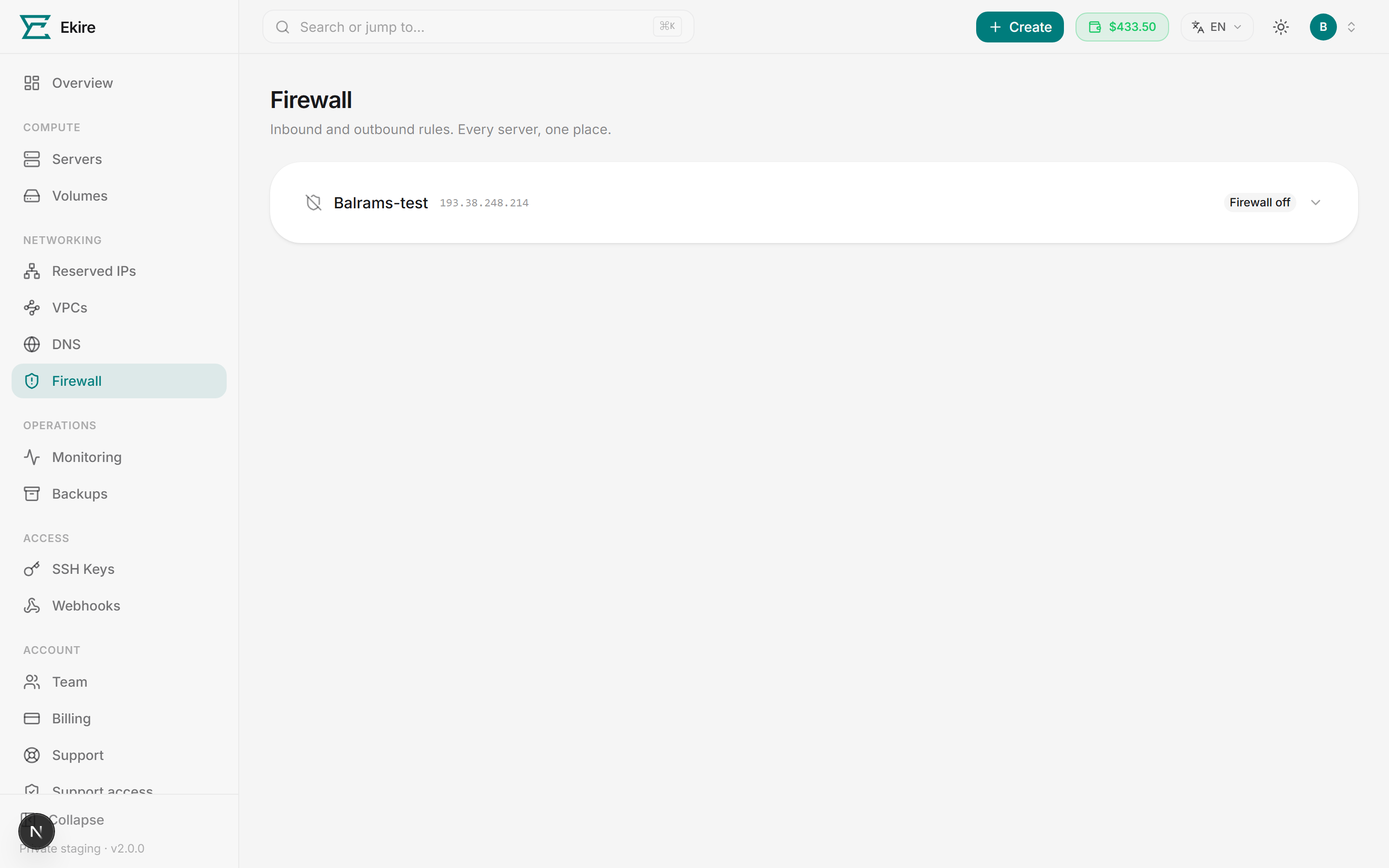
Every server has its own firewall with its own set of rules. Open Firewall in the console to list your fleet, and expand a server to reveal its rules.
How rules work
A rule describes one kind of traffic and what to do with it. Each rule has these fields:
| Field | What it means |
|---|---|
| Direction | Whether the rule matches Inbound traffic (coming to your server) or Outbound traffic (leaving it). |
| Action | What happens to matching traffic: Accept it, silently Drop it, or Reject it (block and reply that it was refused). |
| Protocol | TCP, UDP, ICMP, or Any. |
| Port | The destination port the rule applies to — a single port (22), a range (8000:8100), or a comma-separated list of either. Available for TCP and UDP only — it's disabled for ICMP and Any. |
| Source | An address or range the rule applies to. Leave it blank to match any source. |
| Comment | An optional label to remind you what the rule is for (up to 120 characters). |
Rules are evaluated in order, and any field you leave blank widens the match — a rule with no source applies to every source, and no protocol applies to every protocol.
On means default-deny
When the firewall is on, only the inbound traffic your rules allow reaches the server — everything else is blocked, SSH included if you haven't allowed it. When the firewall is off, there's no filtering and all inbound traffic gets through. Turning the firewall on with no rules yet blocks all inbound traffic, so add at least one allow rule (start with SSH).
What the firewall covers
The firewall filters every network interface on the server: its public IP, any reserved IPs attached to it, and its interfaces on private networks. The same rules apply to all of them. A rule with no source matches traffic arriving on any of them.
Private-network traffic is filtered too
With the firewall on, servers on the same VPC can only reach this one on the ports your rules allow,
just like the internet. To let them talk freely, add an inbound Accept rule with Any protocol
and the VPC's range (for example 10.10.0.0/24) as the Source.
Turn the firewall on
The On/Off toggle applies default-deny the moment you flip it on, so the console asks you to confirm first. You can also add a rule while the firewall is off — that turns it on automatically, and the rule takes effect immediately.
Turning the firewall on (or adding a rule) first checks that the firewall will actually filter your traffic. If it can't, the request is refused and nothing changes, so the switch never reads On while some of your traffic gets around it:
- The firewall has to cover every network interface. We switch it on for each of the server's interfaces first. If that can't be confirmed, try again in a moment.
- Some servers need a reboot first. If the console says the server needs a reboot before the firewall can cover all of its interfaces, reboot it from the console, then turn the firewall on again.
- The host has to be enforcing firewalls. If it isn't, the request is refused with a message asking you to contact support. A firewall that was already on when that happens shows On — not enforced with a warning that your rules aren't being applied, so you're never told you're protected when you aren't.
Add a rule
Expand a server on the Firewall page to open its rules.
Use a quick-allow preset
Quick allow offers presets for SSH (22), HTTP (80), and HTTPS (443) — each adds an inbound TCP Accept rule. A preset disappears once you've added a matching rule.
Or add a custom rule
Choose Custom rule to open the rule form.
Set the fields
Pick a Direction (Inbound or Outbound) and an Action (Accept, Drop, or Reject). Choose a Protocol; for TCP or UDP you can enter a Port. Optionally set a Source and a Comment.
Add it
Select Add rule. It's saved and live right away, and the firewall switches on if it wasn't already.
Don't lock yourself out
While the firewall is on, any inbound port with no Accept rule is blocked — including SSH on port 22. If you never add an SSH allow rule, or you delete the one you have, you'll lose SSH access. The in-browser console still gets you in, so you can fix the rules from there.
Edit or remove a rule
Rules are listed in a table showing their direction, action, protocol, port, source, and comment. There's no in-place edit — to change a rule, delete it with the trash icon and add a replacement. Deleting a rule applies immediately. If you remove the last rule while the firewall is on, all inbound traffic is blocked again, so keep at least an SSH allow rule in place (or turn the firewall off).
Applying it to servers
Firewalls are per-server: the rules you set on one server don't carry over to another. On the Firewall page, each server shows whether its firewall is on or off. Rules can be managed once a server is running or stopped — a server that's still provisioning shows Available once provisioning finishes until it's ready, and one that failed to provision has no firewall to manage and says so in the same place.
A server's firewall stays with it:
-
Reinstall keeps it. The rules, their order, and whether the firewall is on carry over to the fresh system before it first boots, so it never comes up unprotected. If we can't read the firewall when you start the reinstall, the reinstall is refused and nothing changes. Try again. In the rare case the rules can't be copied exactly, the fresh system keeps the firewall on or off as it was but with no rules. If it was on, all inbound traffic is blocked until you add your rules again, which you can do from the console.
On a Linux server with the firewall on, a reinstall adds one temporary rule at the top of the list, labelled Ekire setup: temporary SSH access, removed automatically. It lets SSH (port 22) through for the first few minutes after the fresh system boots, so we can finish setting it up: turning on password login if you chose a root password, asking you to change an emailed password on first login, and installing the Ekire agent that SSH-key sync and live password resets need. It's removed as soon as that's done, normally within a few minutes and after 30 minutes at the latest. You can delete it yourself at any time, and if a hiccup on our side ever leaves it in place longer, opening the server's firewall removes it. While it's there, SSH (port 22) is reachable even if your own rules restrict it. It still only accepts your SSH keys, plus your root password once password login has been turned on.
-
Restoring a snapshot doesn't touch it. Snapshots don't include firewall rules, so the rules you have now stay in place.